Showing posts with label AdSense Tips. Show all posts

Monday, August 17, 2009

Category Filtering beta now available for AdSense for feeds English-language ads

Like we announced on the more general Inside AdSense blog a couple weeks ago, we have extended our category filtering beta to English-language ads on the AdSense network, which we are happy to announce includes ads that appear in AdSense for feeds.

This feature allows to you filter ads in up to five categories such as Dating, Drugs and Supplements, Weight Loss, and Get Rich Quick. Your filters will be applied to English-language ads, no matter how they were targeted.

To have these settings take effect for your feeds, from Ad Review Center, make sure you select a Client-ID that starts with ca-feed-pub. Note that this allows you to select different categories for your feed than for your site, but also means you will need to select filters for both your feed and your site in order for filters to be applied to both these content types.


To see whether category filtering has been enabled for your location, sign in and visit the Ad Review Center, located under the 'AdSense Setup' tab. We're working on expanding this beta to additional languages and countries, and will be sure to announce any updates here on the blog. If you'd like to learn more about category filtering, please visit our Help Center.

Tuesday, May 19, 2009

Redirecting your feed to maximize revenue potential

One of the most popular (and recurring) questions our publishers ask is, "How do I maximize revenue for AdSense for feeds and ensure my subscriber stats are as accurate as possible?" Some of you can recite the answers to these questions backwards and forwards (though we find typing it backwards is quite difficult, so we'll leave you to say that aloud). But for our many new publishers that are just tuning in, here's the recap.


Just setting up AdSense for feeds ad units in your AdSense account is not enough to start seeing traffic and revenue to your feeds. It's critical that 100% of your feed traffic be directed to the feed(s) you created in AdSense for feeds or your FeedBurner account. Luckily, this is fairly easy to do via two standard methods.

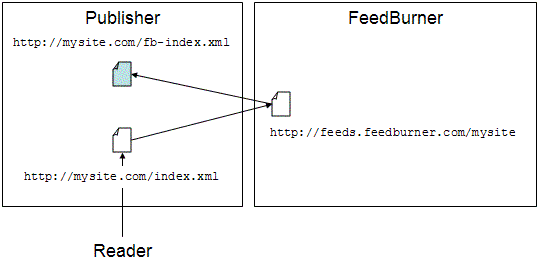
  1. Redirect your original feed. This is the recommended option for all publishers, but especially if you have an already established blog or feed that already has subscribers. This option ensures that all traffic gets funneled to the version that has both advertising and subscriber tracking enabled. We've detailed this process in this Help Center entry.


    Step 2


    An added bonus: a plugin for self-hosted WordPress installations and feed-specific features within Blogger and TypePad make redirection much easier on these two publishing platforms.


  2. Promote your feeds.feedburner.com feed. This is recommended only in the cases where you are setting up a new blog, or have an existing blog or feed that has no traffic. For example, if your feed is found at http://feeds.feedburner.com/toastforbreakfast, you would change your blog template to link only to this version of the feed. Note you have to make sure to change it not only where you promote your feed directly, but also everywhere you have feed autodiscovery links in your template. (One other place to keep in mind: BrowserFriendly.)

Hopefully, this reminder will help everyone get on firm ground with how to maximize traffic to their feed and revenue from it, too. In future posts, we will be covering how to increase traffic and subscribers to your feed, so hang on to your hat!


Wednesday, March 4, 2009

Ad Review Center is now available for Feeds


Many of you have asked for a way to preview ads before they appear in your feed posts. That feature is now available.

The Ad Review Center (ARC) will give you more transparency and control by enabling you to approve or disapprove placement targeted ad creatives before they appear in your posts.

To get started with this tool, please login to your AdSense account. You will find ARC in the ‘Competitive Ad Filter’ section located under the ‘AdSense Setup’ tab. If you are using your AdSense account for other products- content, mobile, or video- please make sure to select the Client-ID starting with ca-feed-pub.

In order to maximize your revenue, we suggest that you keep the default setting to, ‘Run ads immediately.’ This will allow ads to run without delay while still allowing you to login and review the ads at a later time. By selecting the ‘Hold ads’ option, you could potentially decrease your revenue. This option will hold ads from displaying for 24 hours, thus limiting the number of advertisers' driving up your auction price.

You will then have the ability to approve or block a specific ad or advertiser in general. These settings can be changed at any time. Please keep in mind that blocking ads will remove them from the auction and could impact your revenue.

For more information about using the Ad Review Center, please visit our Help Center.

Friday, February 6, 2009

Intro to Feed Placements

In times like these, we know that generating as much revenue as possible is on many publishers' minds. This will be the first of many posts that will hope to explain how to better configure AdSense for feeds to help maximize revenue.

Before going into specifibs though, it's important to understand a couple important differences in how your subscribers are different from visitors on your website.  If you use an analytics package for your site such as Google Analytics, most publishers will see that a large amount of their traffic comes from web searches.  Many of these visitors may have been searching for a certain item, such as one of those blankets with sleeves and a hood - let's call it a shanket.  You happen to have written about how much you love your shanket, and let's face it, you know how to write with the best of them, so your page ranks high in search results.  That visitor may see an ad for a shanket next to your search result but wants to know more.  So he or she clicks and reads your post, which seals the deal on this visitor needing a new shanket.  You use AdSense for content, which includes ads for shankets that are matched contextually; the visitor clicks; a shanket is sold; and you earn revenue in the process.

Your feed subscribers, however, very rarely, if at all, get to your content from a web search.  On the contrary, they subscribe to your blog because you write entertaining musings about your family life, and occasionally also write about some of the wonderful products you have come across, such as your shanket.

Because of this, the types of advertisers that run campaigns targeted at your feeds are not necessarily the same advertisers that are targeting search users.  Instead of targeting keywords that match a search, advertisers wishing to use feed subscribers target placements in the Google Content Network.

How do you ensure that your placements are exposed effectively in the Google Content Network?

That's the easy part.  When setting up new feeds on the AdSense Setup tab, make sure you leave the box that says "Create a channel that allows advertisers to target the selected feed."  If you are creating a new channel that aggregates all of your feeds or subsets of your feeds that you would like to show to advertisers (highly recommended), make sure by selecting the "Show this channel to advertisers as an ad placement."

In a week or so, these placements will show up in AdWords and some of the other tools used by Google advertisers to target the content network.


Stay tuned for the next installment on Advanced Feed Placement optimization.

Wednesday, December 31, 2008

Using the Competitive Ad Filter with AdSense for feeds

First, Happy New Year to everyone from AdSense for feeds and FeedBurner teams here at Google.

Second, this is a quick one - but we get asked this a lot, so we thought we'd cover it.

If you currently use the Competitive Ad Filter with AdSense for content, you may also wish to use it with AdSense for feeds. In order to provide publishers with ultimate control, the filter for AdSense for feeds is separate from that of AdSense for content, but operates in the exact same manner.

To block competitors ads from showing in AdSense for feeds, login to your AdSense account, go to the AdSense setup tab, and select Competitive Ad Filter. Then make sure you have selected the tab marked "AdSense for Feeds" and enter the domains or partial domains into the text box.


For further information on this please read this help center topic .